
PowerPoint の発表者ノート(スピーカーノート) は、発表者のプレゼンテーションを向上させ、シームレスな発表体験を確保する上で重要な役割を果たします。各スライドに追加することで、発表者に貴重なガイダンス、リマインダー、補足情報を提供できます。スライドに表示されるコンテンツとは異なり、発表者ノートは通常、実際のプレゼンテーション中に聴衆には表示されません。
Spire.Presentation for Python を使用すると、開発者は数行のコードで PowerPoint の発表者ノートを追加・読み取り・削除できます。本記事では、スライドへの発表者ノートの追加、ノートのテキスト抽出、ノートの削除方法を紹介します。
クイックナビゲーション
- 2. Python で PowerPoint に発表者ノートを追加
- 3. Python で PowerPoint の発表者ノートを読み取り
- 4. Python で PowerPoint から発表者ノートを削除
1. Spire.Presentation for Python のインストール
このシナリオには Spire.Presentation for Python と plum-dispatch v1.7.4 が必要です。pip を介してインストールします。
pip install Spire.Presentation
Python スクリプトで必要なモジュールをインポートします。
from spire.presentation.common import *
from spire.presentation import *
または、Spire.Presentation for Python のダウンロードページ から手動でライブラリをインストールすることもできます。
2. Python で PowerPoint に発表者ノートを追加
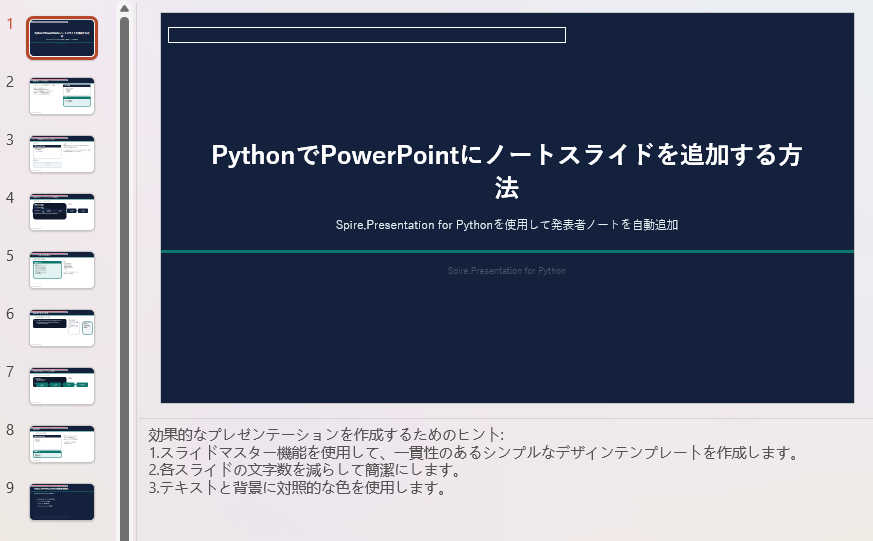
Spire.Presentation for Python は、ISlide.AddNotesSlide() メソッドを提供しており、PowerPoint のスライドにノートを追加できます。次の例では、ノートスライドを作成し、4 つの段落を追加して、特定の段落に番号付き箇条書きを設定する方法を示します。
from spire.presentation.common import *
from spire.presentation import *

# Presentation オブジェクトを作成
ppt = Presentation()
# PowerPoint プレゼンテーションを読み込む
ppt.LoadFromFile("Sample.pptx")

# 最初のスライドを取得
slide = ppt.Slides[0]

# スライドにノートスライドを追加
notesSlide = slide.AddNotesSlide()

# ノートスライドに 4 つの段落を追加
paragraph = TextParagraph()
paragraph.Text = "効果的なプレゼンテーションを作成するためのヒント:"
notesSlide.NotesTextFrame.Paragraphs.Append(paragraph)

paragraph = TextParagraph()
paragraph.Text = "スライドマスター機能を使用して、一貫性のあるシンプルなデザインテンプレートを作成します。"
notesSlide.NotesTextFrame.Paragraphs.Append(paragraph)

paragraph = TextParagraph()
paragraph.Text = "各スライドの文字数を減らして簡潔にします。"
notesSlide.NotesTextFrame.Paragraphs.Append(paragraph)

paragraph = TextParagraph()
paragraph.Text = "テキストと背景に対照的な色を使用します。"
notesSlide.NotesTextFrame.Paragraphs.Append(paragraph)

# 特定の段落に箇条書きの種類とスタイルを設定
for i in range(1, notesSlide.NotesTextFrame.Paragraphs.Count):
    notesSlide.NotesTextFrame.Paragraphs[i].BulletType = TextBulletType.Numbered
    notesSlide.NotesTextFrame.Paragraphs[i].BulletStyle = NumberedBulletStyle.BulletArabicPeriod

# 結果のプレゼンテーションを保存
ppt.SaveToFile("AddSpeakerNotes.pptx", FileFormat.Pptx2016)
ppt.Dispose()
3. Python で PowerPoint の発表者ノートを読み取り
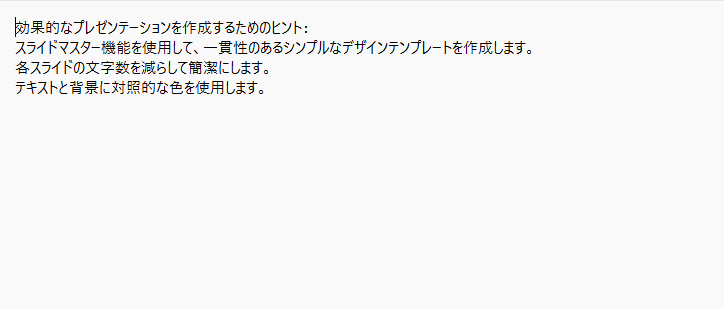
発表者ノートのテキストコンテンツを読み取るには、NotesSlide.NotesTextFrame.Paragraphs コレクションをループ処理して、各段落の TextParagraph.Text プロパティからテキストを取得します。次の例は、ノートのテキストを段落ごとに読み取り、テキストファイルに書き込む方法を示しています。
from spire.presentation.common import *
from spire.presentation import *

# Presentation オブジェクトを作成
ppt = Presentation()
# PowerPoint プレゼンテーションを読み込む
ppt.LoadFromFile("AddSpeakerNotes.pptx")

# 最初のスライドを取得
slide = ppt.Slides[0]

# スライドのノートスライドを取得
notesSlide = slide.NotesSlide

# 各段落のテキストを保存するリストを作成
notes = []
# ノートスライドの段落をループ処理して各段落のテキストを取得
for paragraph in notesSlide.NotesTextFrame.Paragraphs:
    notes.append(paragraph.Text)

# 各段落のテキストをテキストファイルに書き込む
with open("Notes.txt", "w", encoding = "utf-8") as file:
    for note in notes:
        file.write(note + "\n")

ppt.Dispose()
4. Python で PowerPoint から発表者ノートを削除
ノートの特定の段落を削除するか、スライドからすべてのノートを削除するには、NotesSlide.NotesTextFrame.Paragraphs.RemoveAt(index) メソッドまたは NotesSlide.NotesTextFrame.Paragraphs.Clear() メソッドを使用します。次の例は、ノートスライドからすべてのノートを削除する方法を示しています。
from spire.presentation.common import *
from spire.presentation import *

# Presentation オブジェクトを作成
presentation = Presentation()
# PowerPoint プレゼンテーションを読み込む
presentation.LoadFromFile("AddSpeakerNotes.pptx")

# 最初のスライドを取得
slide = presentation.Slides[0]

# スライドのノートスライドを取得
notesSlide = slide.NotesSlide

# ノートスライドから特定の段落のノートを削除
# notesSlide.NotesTextFrame.Paragraphs.RemoveAt(1)

# ノートスライドからすべてのノートを削除
notesSlide.NotesTextFrame.Paragraphs.Clear()

# 結果のプレゼンテーションを保存
presentation.SaveToFile("DeleteSpeakerNotes.pptx", FileFormat.Pptx2013)
presentation.Dispose()
まとめ
本記事では、Spire.Presentation for Python を使用して Python で PowerPoint の発表者ノートを追加・読み取り・削除する方法を実証しました。ISlide.AddNotesSlide() メソッドでノートスライドを追加し、NotesSlide.NotesTextFrame.Text プロパティでノートのテキストを読み取り、NotesSlide.NotesTextFrame.Paragraphs.RemoveAt() メソッドまたは Paragraphs.Clear() メソッドでノートを削除できます。これらの機能は、プレゼンテーションの自動生成、発表資料の準備、ノートの一括管理などの自動化シナリオに役立ちます。
Spire.Presentation for Python の全機能を評価したい場合は、30 日間の無料ライセンスを申請できます。
6. FAQ
Microsoft PowerPoint をインストールせずに発表者ノートを追加できますか?
はい。Spire.Presentation はスタンドアロンのライブラリであり、Microsoft Office や PowerPoint をインストールする必要はありません。
発表者ノートに番号付きリストや箇条書きを設定できますか?
はい。段落の BulletType プロパティで箇条書きの種類を、BulletStyle プロパティでスタイルを設定できます。例では、TextBulletType.Numbered と NumberedBulletStyle.BulletArabicPeriod を使用して番号付きリストを設定しています。
特定の段落のノートだけを削除するにはどうすればよいですか?
NotesSlide.NotesTextFrame.Paragraphs.RemoveAt(index) メソッドを使用して、インデックスを指定することで特定の段落のノートを削除できます。
発表者ノートのテキストを読み取るにはどうすればよいですか?
ISlide.NotesSlide プロパティでノートスライドを取得し、NotesSlide.NotesTextFrame.Text プロパティからテキストコンテンツを取得します。